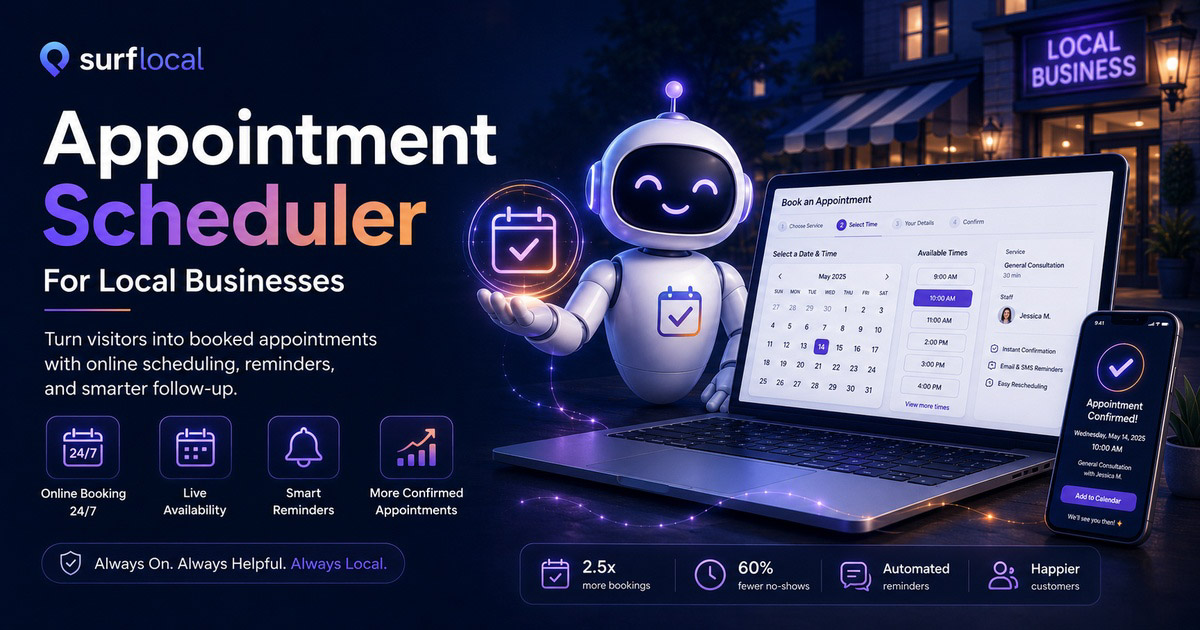
Customers often decide quickly. When they are ready to book, your website should help them choose a time, send their details, and move toward confirmation without waiting for a call back.
Path 1 - Overview
Online scheduling that helps customers take the next step.
The Surflocal Appointment Scheduler gives local businesses a clear way to collect appointment requests, guide visitors toward available times, and keep booking activity connected to the rest of the customer journey.
Instead of forcing customers to wait for a phone call, search for hours, or send vague messages, the scheduler helps them move forward while they are already interested.
Path 2 - Availability
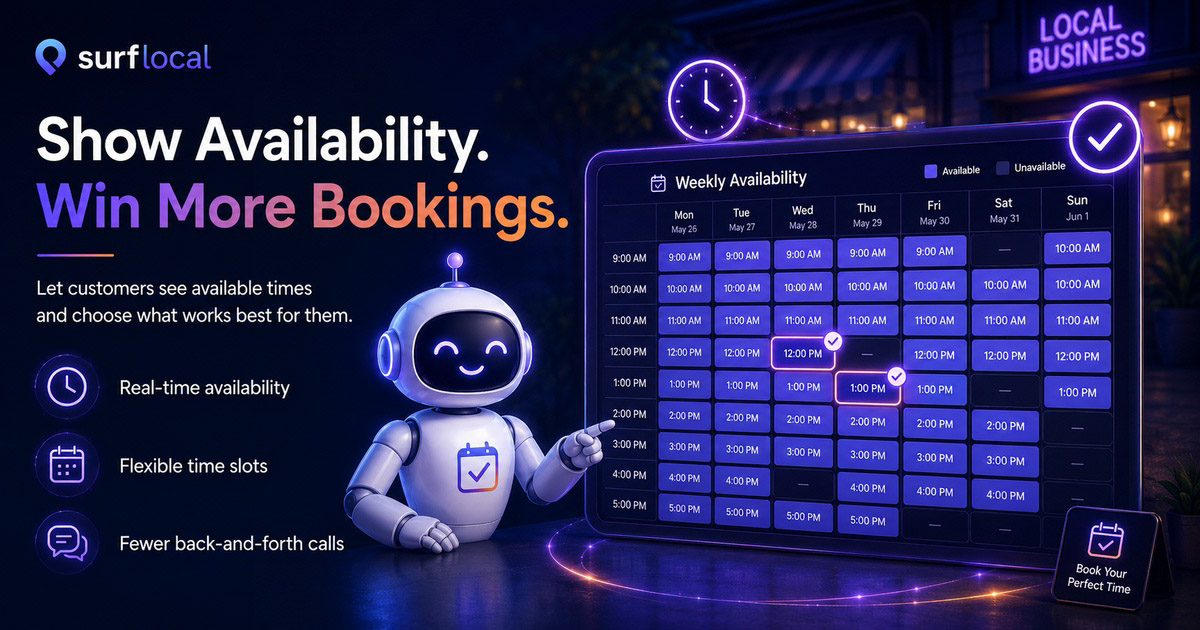
Show customers the appointment path before they drift away.
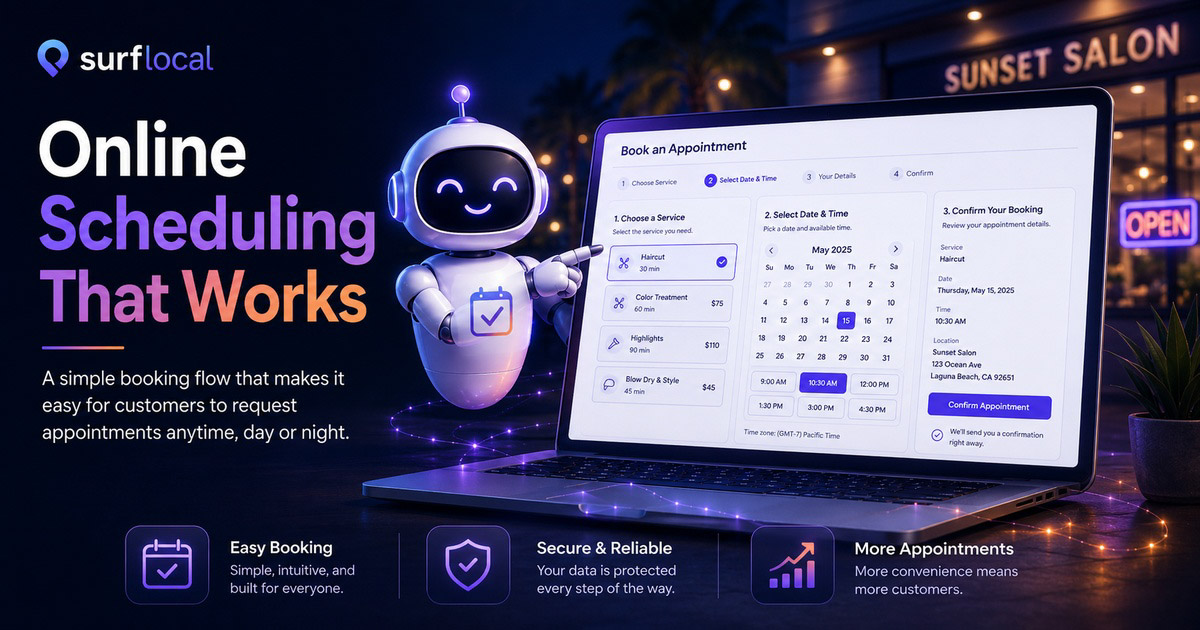
When someone wants a consultation, service appointment, estimate, meeting, or demo, the scheduler gives them a direct path to request time with your business.
Clear appointment choicesCustomers can see a simple scheduling flow instead of guessing how to reach you.
Better customer momentumMove interested visitors toward a booking request while they are still engaged.
Less staff interruptionReduce repetitive scheduling calls and basic availability questions.
Business-controlled follow-upYour company can still confirm, adjust, or follow up based on your workflow.
Path 3 - Chat To Booking
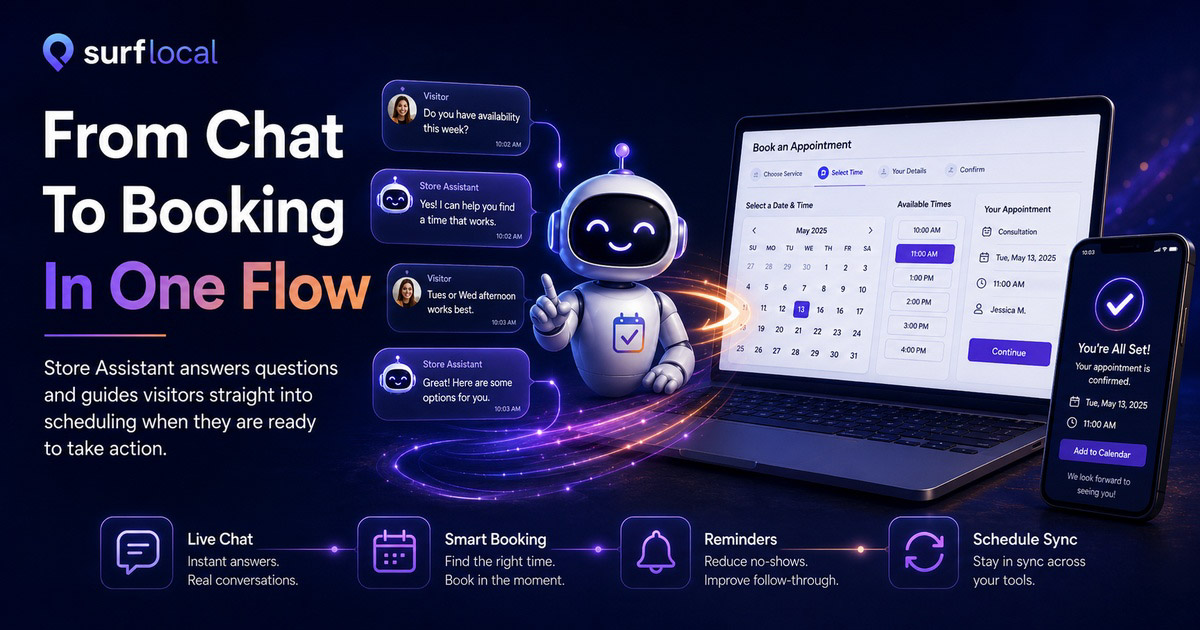
Store Assistant can guide the customer into scheduling.
The Store Assistant answers questions first. When the visitor asks about appointments, consultations, availability, estimates, service calls, or booking, it can direct them toward the scheduler instead of ending the conversation.
Simple result: questions turn into appointment requests instead of dead-end conversations.
Path 4 - Reminders
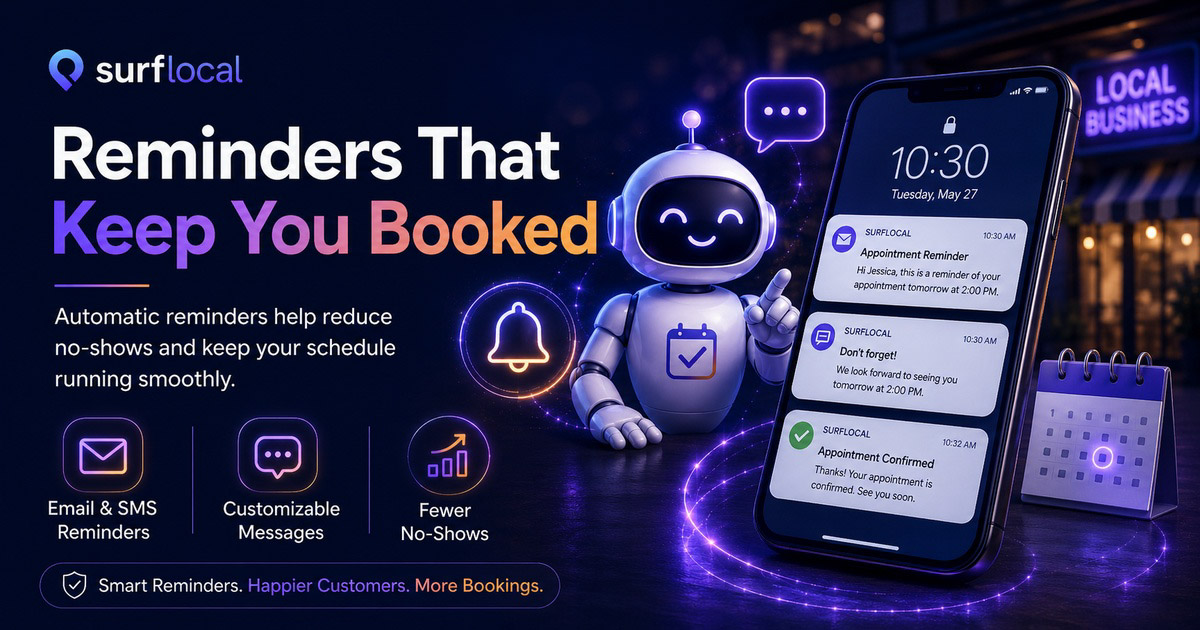
Reduce missed calls, missed chances, and missed appointments.
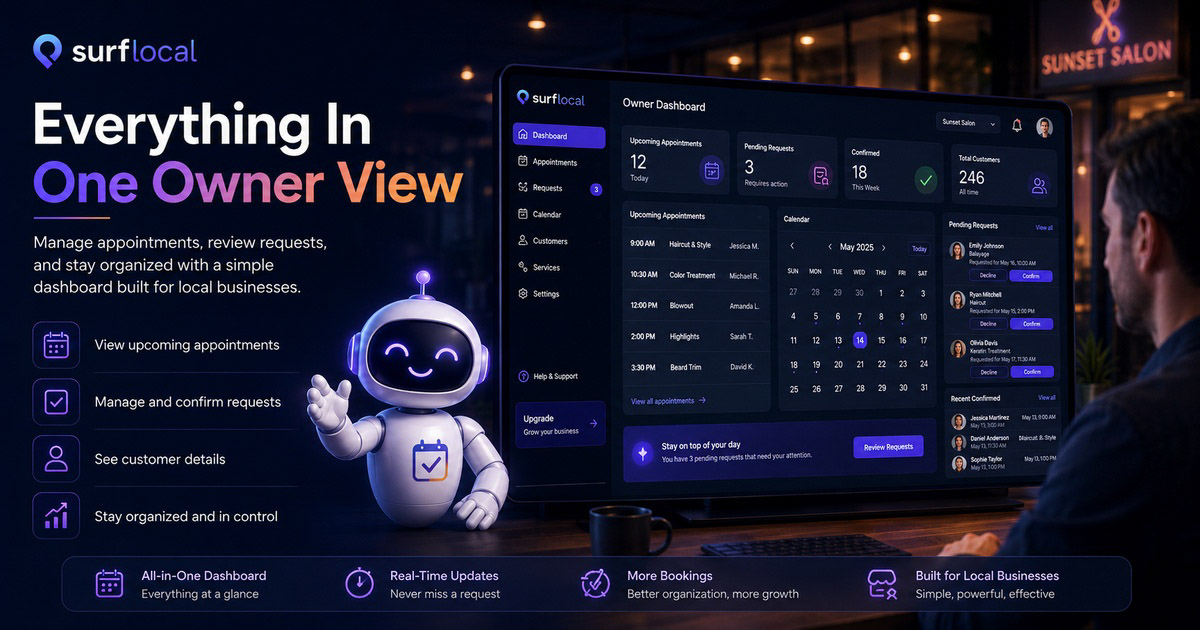
The scheduler is designed to help customers take action and help business owners stay organized. It supports a practical booking path for local businesses that need customer requests, follow-up, and appointment handling.
- Booking requests: collect customer intent and appointment details.
- Confirmation path: help move the appointment toward final confirmation.
- Follow-up support: keep the customer relationship moving after the request.
- Cleaner workflow: organize appointment activity around one customer action.
- Customer convenience: let people request time when your staff is busy or unavailable.
Path 5 - Owner View
What this means for your business.
Good fits
- Service businesses that need appointments, estimates, or service windows.
- Consultants and professionals that need discovery calls or meetings.
- Local shops that offer demos, fittings, classes, pickup windows, or scheduled help.
- Sales teams that need interested visitors routed into a follow-up call.
Honest expectations
- It supports your staff. It does not remove the need for human follow-up when your business requires confirmation.
- It needs accurate business details. Services, hours, and appointment rules should stay current.
- It works best with clear offers. Customers book faster when they understand the service or next step.
Path 6 - Get Started
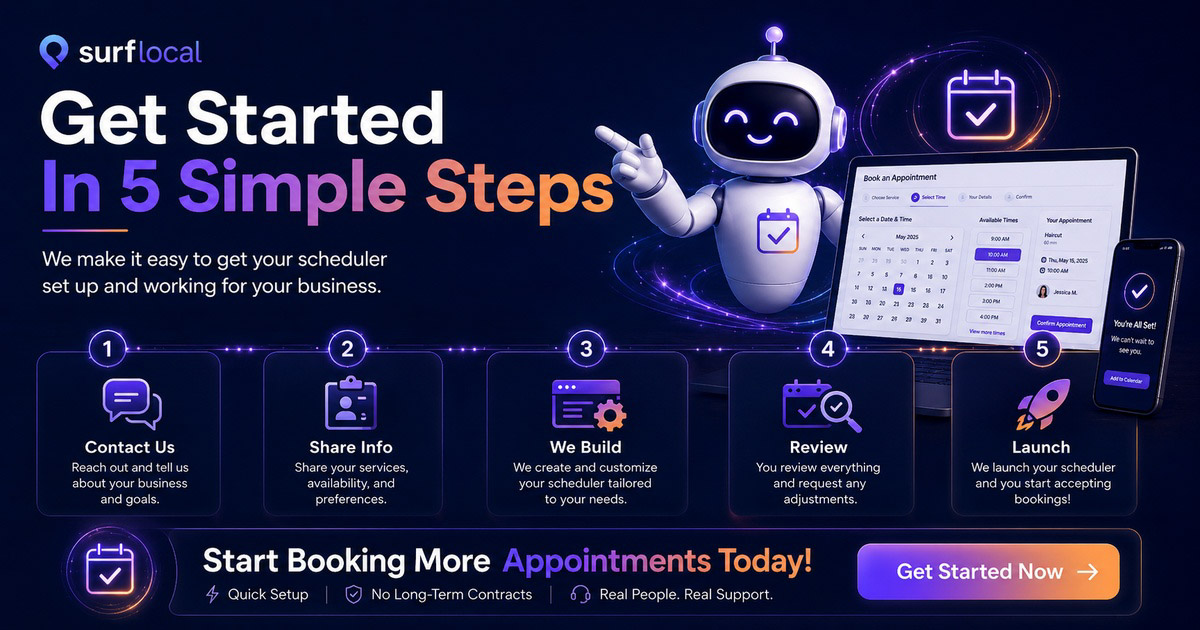
How to get started with the Appointment Scheduler.
Start the conversation
Use the Contact Form and mention Appointment Scheduler.
Send your business details
Use the Information Form so your services, hours, contact details, and scheduling needs are clear.
Connect it to your marketing page
Use Webpage Creation, Marketing Ad, or Advertising Ad if you need a page or campaign around the scheduler.
Approve build and hosting
After we confirm the correct setup, we will direct you to the proper build and hosting payment links.
Review and launch
We install the scheduler, connect it to your page, and let you review the customer booking flow.
Ready to let customers request appointments online?
Use the scheduler by itself, or connect it with Store Assistant so visitors can ask questions, get answers, and move directly toward booking.